
Choose whether to record time codes giving the hour, minute, second, and frame number for each frame when recording videos. Time codes are not included in videos shot with [H.264 8-bit (MP4)] selected for [Video file type] in the video recording menu.
| Option | Description |
|---|---|
| [Record timecodes] |
|
| [Count-up method] |
|
| [Timecode origin] |
|
| [Drop frame] | Select [ON] to compensate for discrepancies between the frame count and the actual recording time at frame rates of 239.76p, 119.88p, 59.94p, and 29.97p. |
| [LTC signal input]] | Select [ON] to synchronize timecodes with external devices connected to the external microphone/line input connector (Synchronizing timecodes with external devices). |
Caution: HDMI devices
Selecting [On (with HDMI output)] for [Record timecodes] may disrupt footage output to HDMI devices.
Synchronizing timecodes with external devices
Select [ON] for [LTC signal input] to synchronize timecodes with external devices connected to the external microphone/line input connector.
- The following external device has been tested and approved for use:
- Tentacle Sync SYNC E Timecode Generator
- Also see the documentation supplied with the external device.
- Match the frame rates of the camera and external device.
- If the value is not a match for that chosen with the camera, timecodes will not be recorded or output via HDMI. Match the frame rate for the external device to the video recording frame rate as follows:
Video recording frame rate External device frame rate 239.76p, 119.88p, 59.94p, 29.97p 29.97 fps 200p, 100p, 50p, 25p 25 fps 23.976p 23.98 fps
- If the value is not a match for that chosen with the camera, timecodes will not be recorded or output via HDMI. Match the frame rate for the external device to the video recording frame rate as follows:
- Open the cover for the camera’s microphone/headphone/remote cord connectors (q).
- Connect the external device (e) to the camera’s external microphone/line input connector (w).

- Select [On] or [On (with HDMI output)] for [Timecode] > [Record timecodes] in the camera’s video recording menu.
Timecode recording will begin. The timecode appears in the shooting display.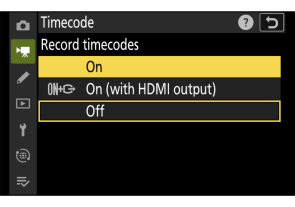
- When [Off] is selected for [Timecode] > [Record timecodes] in the video recording menu, the [LTC signal input] setting cannot be changed.
- Select [ON] for [Timecode] > [LTC signal input] in the camera's video recording menu.
The camera will begin to receive timecodes from the external device.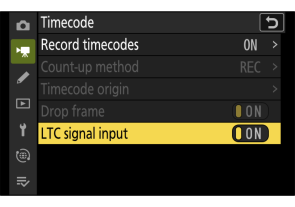
- If no timecode is received, the shooting display will show “--:--:--:--” (or “00:00:00.00” when an external device is connected via HDMI). No timecodes will be recorded if filming is begun at this stage.
- Sound will not be output to headphones or HDMI.
- Timecodes are received from either the left (1) or right (2) output channel of the external device. The output channel will differ depending on the external device. See the documentation provided with the external device regarding which channel the timecode will be output from.
- If the external device timecode is output on both the left (1) and right (2) channels, the timecode will be received from the left (1) channel.
- If an external device is not connected when [LTC signal input] is set to [ON]:
- Timecodes will not be received.
- Sound will be recorded from either the built-in microphone or an external microphone attached to the digital accessory shoe.
Cautions: Receiving timecodes from an external device connected to the external microphone/line input connector
- After acquiring the timecode, you can continue to record the timecode even if the connection with the external device is ended. If the connection with the external device is ended, the TC background color displayed on the shooting display changes to red.
- Timecodes will not be recorded if [H.264 8-bit (MP4)] is selected for [Video file type] in the video recording menu.
- The options selected for [Timecode] > [Count-up method], [Timecode origin], and [Drop frame] in the video recording menu cannot be changed if [LTC signal input] is set to [ON].
- Timecodes cannot be received from an external device connected to the external microphone/line input connector at the same time that timecodes are being received using UltraSync BLUE.